
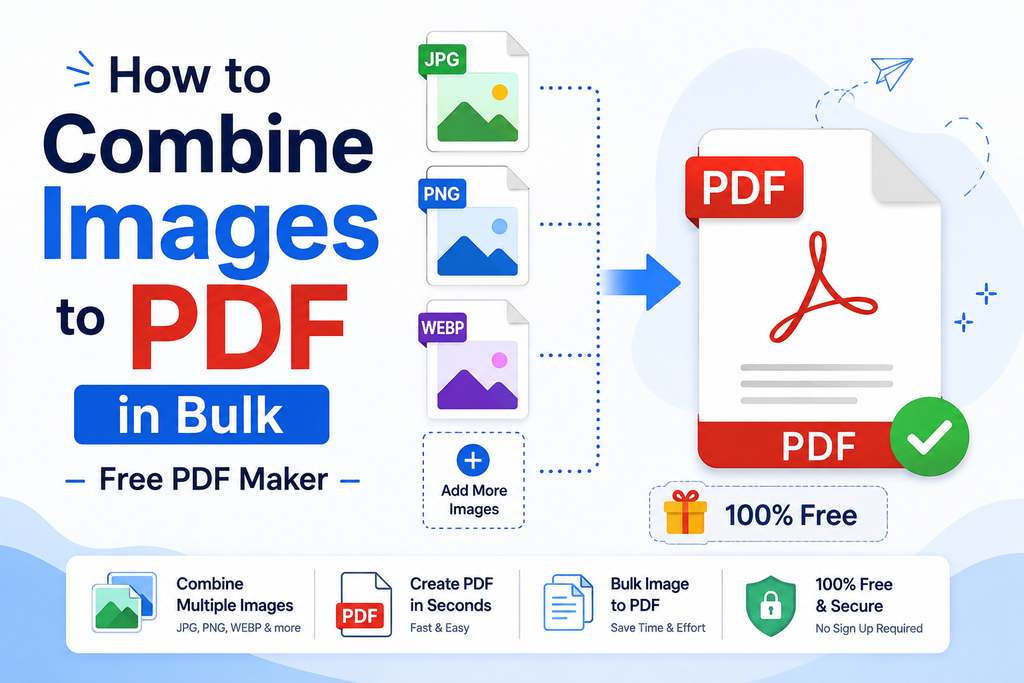
If you work with a lot of images, then you know how hard they can be to store and organize. Most file systems tend to give really unintuitive names to images. You usually have to rename them yourself.
Aside from that, navigating folders to retrieve a single image can be quite the inconvenience once you have hundreds of pictures and folders.
So, how do you make it easier for yourself to store images in bulk and reduce file clutter? One of the most profound solutions is to combine multiple images into one PDF.
Having all your images in one file can make it very easy to both find and share your images with others.
Let’s learn how you can do that for free with the help of online tools.
How to Combine Images to PDF in Bulk
As we stated earlier, you do not need complicated desktop software to create a PDF from multiple images. An online converter can do the job directly from your browser. The best thing is that you don’t need to pay for a subscription either.
Here is how the basic process goes.
- Collect the Images You Want to Combine
First of all, find all the images that you want to put into one file. These could be organized according to subject or project.
Make sure to put them in the order that you would like the PDF to have. This is useful if you are dealing with scans of a document, so putting images in the order of page number is best.
Most online tools support all kinds of image formats, so you don’t need to worry about that.
- Open an Image to PDF Converter
Now, you need to go online and search for an image-to-PDF converter. You can use any that you like, but for this article, we are going to use the image to PDF converter by imagetotext.me.
We chose this tool in particular because it is free, has a good UI, and supports a large number of image formats. This tool allows you to combine 50 images into one PDF; however, each image must be 4 MB or smaller in size.
It also supports multiple input methods so you can use any that you feel are convenient.
The best thing is that it works on smartphones as well because it is browser-based and doesn’t require a download or install.
- Upload Your Images in Bulk
Now, in the UI, you will see an option to “Upload” images. If you click/tap that, your file explorer will open. Here, you must navigate to the folder where you put all the images. Select them all and input them.
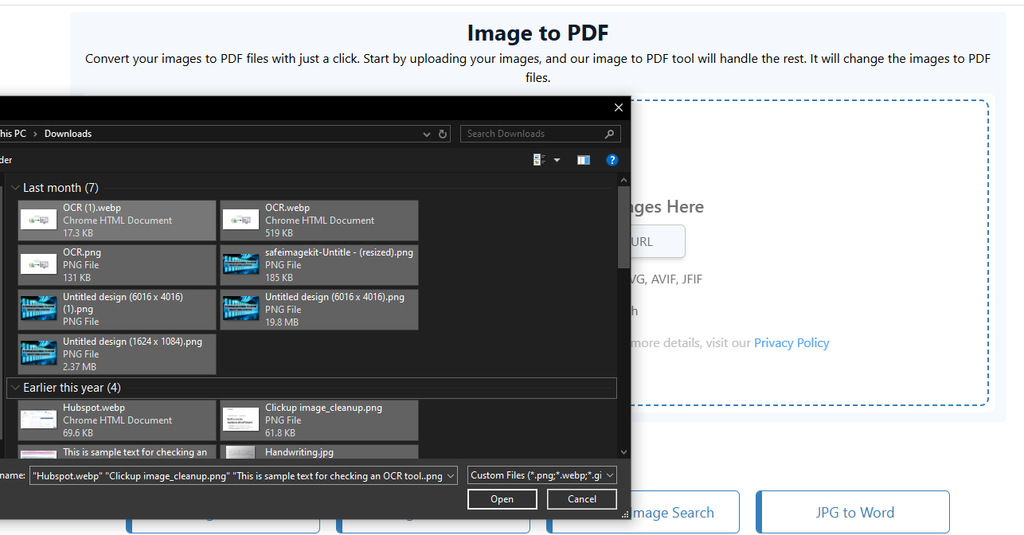
Now, if you put them in the right order, then the input will be automatically in the right order as well. If you didn’t, then you will have to manually upload them one by one in the correct order.
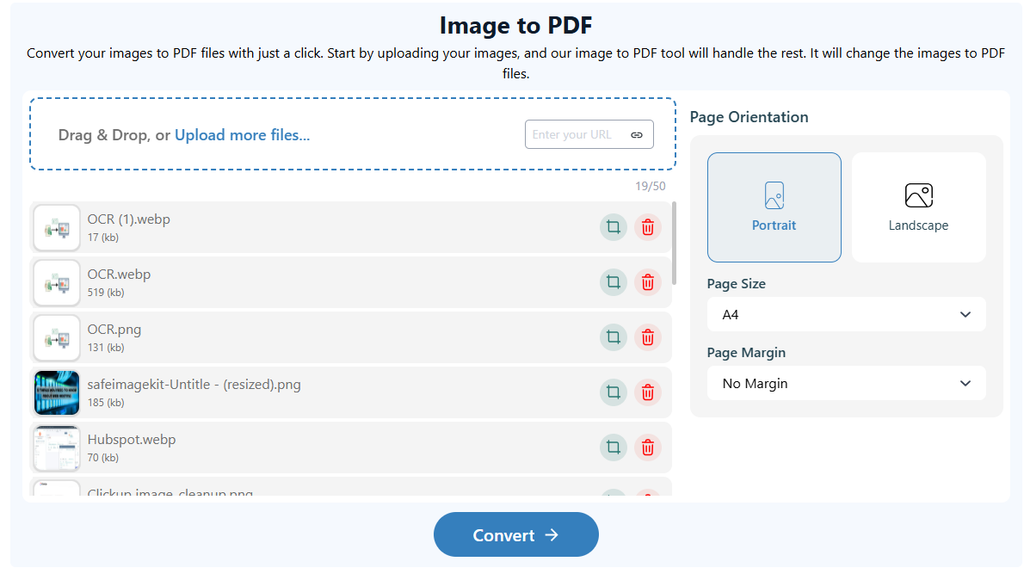
Once your input is complete, you will be able to see a preview of all images as well as some extra options.
- Choose the Page Settings
Your images may not all have the same dimensions or orientation. One photograph could be vertical while another is horizontal.
That’s why you must adjust the page settings first.
The Image to PDF tool allows you to choose between portrait and landscape orientation. You can also select page sizes such as A4, A3, A5, Letter, Legal, and other options, along with the page margin.
For documents intended for printing, A4 is often a practical choice. If your images are primarily photographs, you may prefer settings that preserve their appearance without unnecessary cropping.
- Create the PDF
Once your images and page settings are ready, start the conversion. Simply press the “Convert” button to start the process.
The converter processes the selected images and creates the PDF. Depending on the tool and the number and size of your images, the process may take a little longer for larger batches.
You will be able to see the progress.
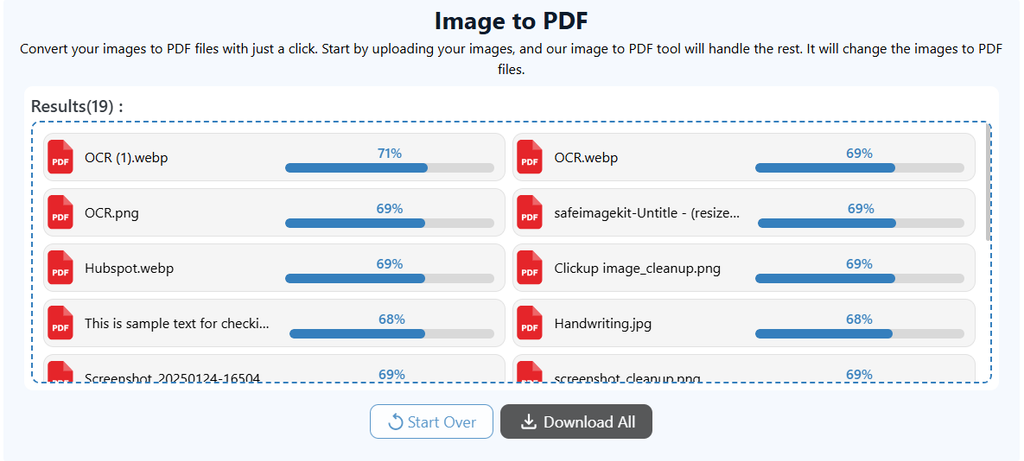
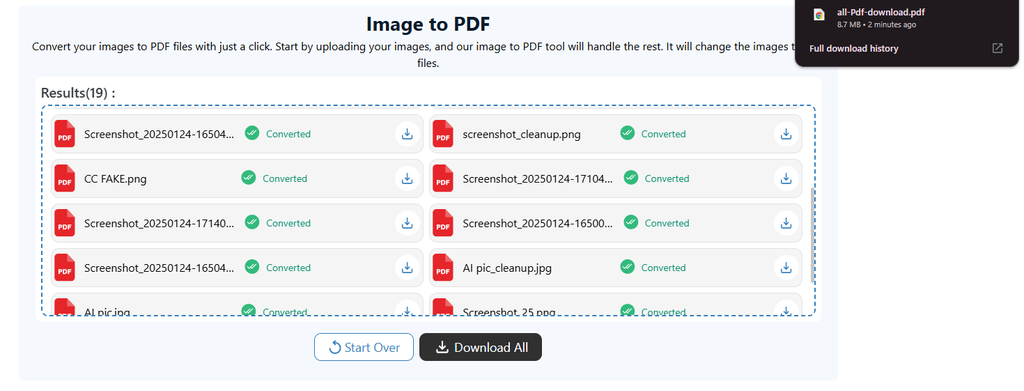
Here’s the important part: once the process is done, you will see download icons in front of all PDFs. Ignore them. You must select the Download All button to get a single PDF with all of the images.
Once you do, it will be downloaded. Then you can open it and check how it looks.
How to Combine JPG Images Specifically Into One PDF
If most or all of your files are JPG or JPEG images, a dedicated JPG-to-PDF converter is another convenient option.
The JPG to PDF converter from ImageToTextConverter.net is designed specifically for converting JPG images into PDF files in bulk.
It supports up to 50 images at once and lets you choose the page orientation, page size, and margins before conversion. It can also combine multiple JPG images into a single PDF rather than producing a separate document for every image.
The basic process is the same as the image-to-PDF tool we discussed earlier, so you can follow the same steps again.
Tips for Making a Better PDF From Images
Simply combining images is only part of the job. A few small things can make the final document much easier to use. Here are some useful tips you can follow to make your image to PDF conversion and the resultant file much better.
- Check the Page Order
Always verify that the pages are in the correct sequence. This is particularly important for scanned documents, assignments, and forms that have page numbering.
- Use a Consistent Page Size
If the PDF will be printed, selecting a standard page size such as A4 can make the document easier to handle later on. So consider that.
- Check Image Quality
Very large images can create unnecessarily large PDF files. On the other hand, reducing image quality too much can make text and small details difficult to read.
Consider striking a balance and keep your end use case in mind.
- Rotate Images When Necessary
Phone photographs do not always have the correct orientation. Check your images before creating the final document so that pages are not sideways or upside down.
You may have to rotate or crop them before you can put them in the PDF.
Give the PDF a Useful Name
Instead of leaving the file with a generic name, rename it based on its contents. Something like “Project-Documents.pdf” is much easier to identify later than “output.pdf”.
Conclusion
You do not need paid PDF software just to combine a batch of images. Online image-to-PDF tools can turn multiple pictures into a single document without requiring a complicated workflow.
Simply follow the steps we listed, and you will obtain a PDF with all of your images in it with ease.